


Screenshot on Acer Aspire V3-571G-736b8G75Makk
Laptops Specs >> Acer >> Acer Aspire V3-571G-736b8G75Makk| Specifications | | | Reviews |
| Screenshot |
1. Press Windows key + PrtScr key
Just press the Windows key and the PrtScr key at the same time and the screenshot will be taken.
In the folder named screenshots on your computer, there will be your screenshot as shown in the figure below:

2. Press PrtScr key
Just press the PrtScr key and the screenshot will be taken.
After capturing a screenshot, it automatically copies the image of your screen to the clipboard. Open any graphics editor and use the Ctrl + V keys to open the image in the program.
Comments, Questions and Answers about Acer Aspire V3-571G-736b8G75Makk
Ask a question about Acer Aspire V3-571G-736b8G75Makk

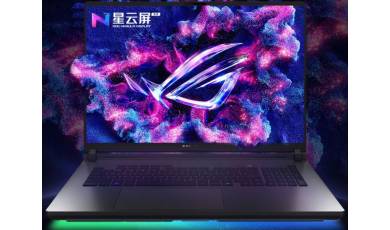
ASUS has unveiled a new series of ROG Hero 10 gaming laptops, available in both standard and Plus versions. The company has focused not only on powerful hardware but also on effective cooling, designed to handle modern AAA games without throttling.
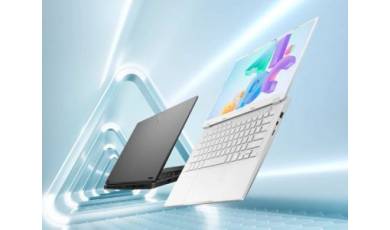
ASUS has added the Tianxuan 7 Pro Max gaming laptop to its lineup. In addition to a large display, the new model is equipped with powerful hardware from AMD and NVIDIA, as well as a decent set of ports.
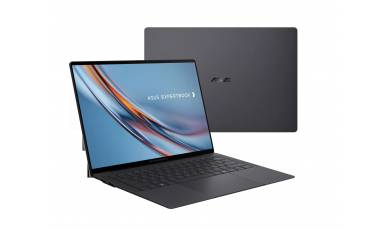
The ASUS ExpertBook Ultra 14 laptop, announced at CES 2026, has been unveiled. It features a 10.9 mm-thick chassis, a tandem OLED display, and powerful hardware.