

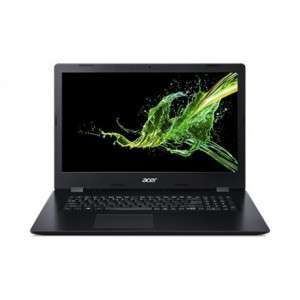
Screenshot on Acer Aspire A317-51G-79C3 NX.HM1EG.005
Laptops Specs >> Acer >> Acer Aspire A317-51G-79C3 NX.HM1EG.005| Specifications | | | Reviews |
| Screenshot |
1. Press Windows key + PrtScr key
To take a screenshot, press the Windows and PrtScr keys simultaneously.
Your screenshot will be saved in a folder called screenshots on your computer, as shown in the image below:

2. Press PrtScr key
To take a screenshot, press the PrtScr key.
After that the screenshot is automatically copied to the clipboard of the computer and can be edited in a graphic editor.
Comments, Questions and Answers about Acer Aspire A317-51G-79C3 NX.HM1EG.005
Ask a question about Acer Aspire A317-51G-79C3 NX.HM1EG.005
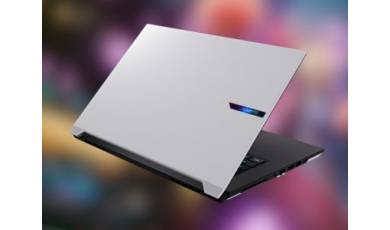
The GIGABYTE Aero X16 is positioned as a model capable of running LLMs locally and performing other ?heavy-duty? tasks, including content creation and gaming. In addition to its powerful hardware, the new model stands out for its good battery life and fast 16-inch display.
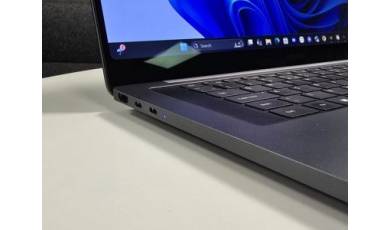
Samsung unveiled the Galaxy Book 6 Edge laptop without any fanfare, simply issuing a press release on its official website. This ?quiet? unveiling revealed all the specifications of the new device, which is built on an ARM processor.
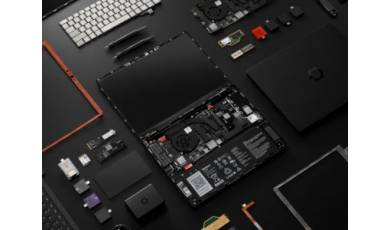
Framework has released its Laptop 13 Pro, based on the latest Intel Core Ultra platform. Its main advantage over competitors is its modular design, which allows for easy upgrades and repairs.