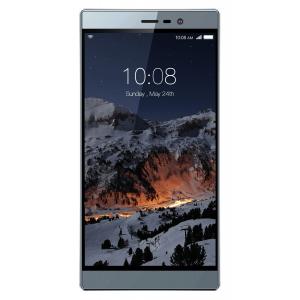
Take a Screenshot on SwItel eSmart M3
Mobiles >> Switel >> SwItel eSmart M3| Specifications | Reviews | Secret codes |
| Unlock phone | Root phone |
| Backup | Flash Firmware | Screenshot |
How to make screenshot on SwItel eSmart M3
You can take a screenshot of SwItel eSmart M3 by pressing the Power and Volume Down buttons simultaneously.
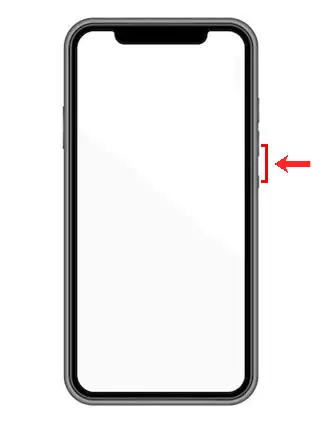
Your screenshot will be in the Gallery. This screenshot can be used as a photo for posting on social networks or transfer using instant messengers.
Comments, Q&A on screenshot SwItel eSmart M3
Ask a question about SwItel eSmart M3