
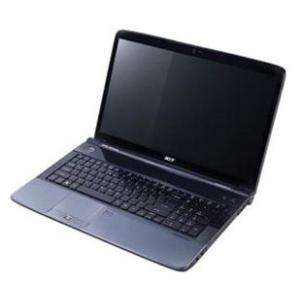
Screenshot on Acer Aspire 7740G-334G32Mi
Laptops Specs >> Acer >> Acer Aspire 7740G-334G32Mi| Specifications | | | Reviews |
| Screenshot |
1. Press Windows key + PrtScr key
Press the Windows key and PrtScr at the same time and a screenshot will be taken.
Next, you will be able to see your screenshots in a folder called screenshots on your computer, as shown in the image below:

2. Press PrtScr key
Press the PrtScr key and a screenshot will be taken.
Once captured, the screenshot is automatically copied to your computer clipboard. Open Paint and use the Ctrl + V keys to open the image in the program.
Comments, Questions and Answers about Acer Aspire 7740G-334G32Mi
Ask a question about Acer Aspire 7740G-334G32Mi
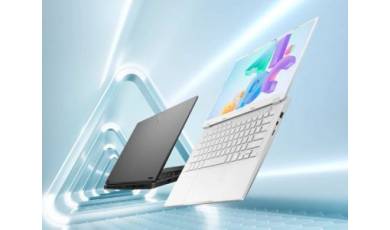
ASUS has added the Tianxuan 7 Pro Max gaming laptop to its lineup. In addition to a large display, the new model is equipped with powerful hardware from AMD and NVIDIA, as well as a decent set of ports.
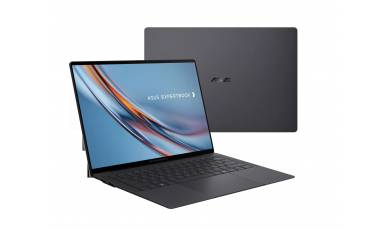
The ASUS ExpertBook Ultra 14 laptop, announced at CES 2026, has been unveiled. It features a 10.9 mm-thick chassis, a tandem OLED display, and powerful hardware.
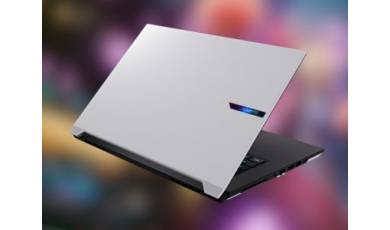
The GIGABYTE Aero X16 is positioned as a model capable of running LLMs locally and performing other ?heavy-duty? tasks, including content creation and gaming. In addition to its powerful hardware, the new model stands out for its good battery life and fast 16-inch display.