
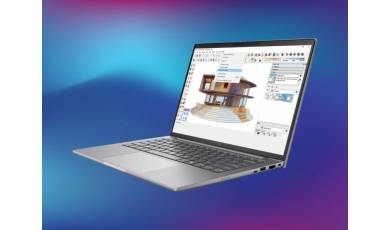


Screenshot on Lenovo ThinkPad X13 Yoga Gen 1 20SX002RCA 13.3
Laptops Specs >> Lenovo >> Lenovo ThinkPad X13 Yoga Gen 1 20SX002RCA 13.3| Specifications | | | Reviews | | | Compare |
| Screenshot |
1. Press Windows key + W key
To take a screenshot, press the Windows and W keys simultaneously, a pop-up window will appear at the bottom of the screen, as shown in the figure below:

You can resize your screenshot if you don't want a screenshot of the whole screen.
After you finish editing, you can save the screenshot to your computer.
2. Press Windows key + PrtScr key
Press the Windows key and PrtScr at the same time and a screenshot will be taken.
Your screenshot as a picture will be in a folder named screenshots on your computer, as shown in the picture below:

3. Press PrtScr key
Press the PrtScr and a screenshot will be taken.
After that the screenshot is automatically copied to the clipboard of the computer and can be edited in a graphic editor.
Comments, Questions and Answers about Lenovo ThinkPad X13 Yoga Gen 1 20SX002RCA 13.3
Ask a question about Lenovo ThinkPad X13 Yoga Gen 1 20SX002RCA 13.3
