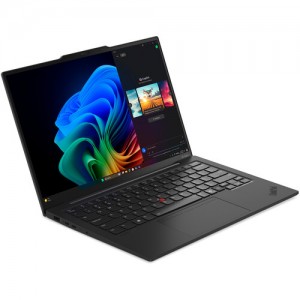
Screenshot on Lenovo 14" ThinkPad X1 Carbon Gen 13 Aura Edition with Intel Core Ultra 7 266V 21NS005TUS
Laptops Specs >> Lenovo >> Lenovo 14" ThinkPad X1 Carbon Gen 13 Aura Edition with Intel Core Ultra 7 266V 21NS005TUS| Specifications | | | Reviews |
| Screenshot |
1. Press Windows key + W key
After you press the Windows and W keys at the same time, you will see a pop-up window at the bottom of the screen, as shown in the figure below:

You can modify your screenshot using different color markers or selectors, or crop the image if you don't want a screenshot of the whole screen.
After making changes to the screenshot, choose what to do with it next: save the screenshot, copy it, or send it somewhere.
2. Press Windows key + PrtScr key
Press the Windows key and PrtScr at the same time and a screenshot will be taken.
Next, you will be able to see your screenshots in a folder called screenshots on your computer, as shown in the image below:

3. Press PrtScr key
Press the PrtScr and a screenshot will be taken.
The screenshot is then automatically copied to the computer's clipboard. Open a graphics editor and use the Paste function to open the image in the program.
Comments, Questions and Answers about Lenovo 14" ThinkPad X1 Carbon Gen 13 Aura Edition with Intel Core Ultra 7 266V 21NS005TUS
Ask a question about Lenovo 14" ThinkPad X1 Carbon Gen 13 Aura Edition with Intel Core Ultra 7 266V 21NS005TUS