Nothing hurts like a perfect spray transfer ruined by a sudden frame drop. You peek mid, the screen stutters, and you're staring at the spectator camera. On a potato PC, that's a daily tragedy.
The good news is that Counter-Strike 1.6 is a legendary engine built in an era of single-core processors and 512 MB of RAM Random Access Memory (RAM) is the place in a computer where the operating system, application programs, and data in current use are kept so that they can be quickly reached by the computers processor.. With the right tweaks, even an ancient office laptop can hit a silky 100+ FPS. This guide covers video options, launch parameters, console commands, Windows tuning, and network settings, so you can stop blaming your hardware and start fragging.
Why Is CS 1.6 Lagging on a Low-End PC?
The game is old, so why does it stutter? The usual culprits are:
- Integrated graphics with bad drivers. The engine is light, but outdated drivers can wreck OpenGL performance.
- Background junk. Browsers, launchers, and updaters steal CPUCPU is the abbreviation for central processing unit (the processor). The CPU is the brains of the computer where most calculations take place. cycles.
- Capped or unstable FPS. The default limit is 100, and mismatched settings cause micro-stutters.
- Overloaded clean-up. Old configs, huge custom sprays, and heavy mods slow things down.
- A bloated or broken build. Repacks stuffed with extras can hurt performance.
That last point matters. If you're wondering where to download CS 1.6 safely, look for a clean, lightweight build from a trusted source. Avoid installers packed with random plugins and ?bonus? software. A tidy install means fewer files to load, fewer crashes, and a better baseline FPS before you touch a single setting.
Best In-Game Video Settings for High FPS
Open the options menu and go to Video. These are the settings that matter most:
- Renderer: OpenGL for most systems. Try Direct3D only if OpenGL misbehaves on a very old GPU. Software mode is a last resort.
- Resolution: 800x600 or 1024x768. Lower resolution means more frames and larger, easier-to-track models.
- Aspect ratio: 4:3 stretched is a classic competitive choice.
- Color depth: 32-bit is fine on almost anything.
- Display mode: Fullscreen. Windowed adds overhead.
- Vertical sync: Off. V-Sync adds input lag and caps your frames.
- Texture detail: Low or medium.
- High quality models: Off.
- Gamma and brightness: Raise them a bit so dark corners don't hide enemies.
These changes alone can add 20 to 50 FPS on weak machines.
Best CS 1.6 Launch Options
Launch options are small commands that run before the game loads. Right-click the game in your library, open Properties, and paste these into the launch options field:
-novid -console -freq 100 -noforcemparms -noforcemaccel -noforcemspd -nojoy -high
Here's what they do:
- -novid skips the intro, so you load faster.
- -console enables the console right away.
- -freq 100 sets your monitor refresh rate. Match it to what your screen supports, such as 60 or 75.
- -noforcemparms, -noforcemaccel, -noforcemspd stop Windows from interfering with mouse settings.
- -nojoy turns off joystick support and saves a little memory.
- -high gives the game higher CPUCPU is the abbreviation for central processing unit (the processor). The CPU is the brains of the computer where most calculations take place. priority.
Want a windowed test? Add -w 800 -h 600. If you suspect rendering issues, try adding -gl to force OpenGL.

Best CS 1.6 Console Commands for FPS
Open the console with the tilde key and type these. Better yet, save them in your autoexec file so they load every time.
Unlock and show your frames:
- fps_max 101 caps FPS slightly above the classic limit.
- fps_override 1 allows higher values if you want to experiment.
- cl_showfps 1 displays your current FPS on screen.
Cut visual clutter:
- gl_vsync 0 disables vertical sync.
- max_shells 0 removes ejected shell casings.
- max_smokepuffs 0 trims extra smoke particles.
- cl_weather 0 turns off weather effects.
- cl_corpsestay 0 removes bodies quickly.
- cl_himodels 0 uses simpler player models.
- gl_picmip 1 lowers texture quality slightly.
Pro tip: don't paste fifty commands blindly. Add a few at a time and watch your FPS counter to see what actually helps.
How to Optimize Windows for Better CS 1.6 Performance
Your operating system can be the hidden bottleneck. Work through this checklist:
- Set the power plan to High Performance. Balanced mode can throttle your CPUCPU is the abbreviation for central processing unit (the processor). The CPU is the brains of the computer where most calculations take place. mid-match.
- Update your GPUGPU-accelerated computing is the use of a graphics processing unit (GPU) together with a CPU to accelerate deep learning, analytics, and engineering applications. drivers. Even integrated graphics benefit from fresh drivers.
- Close background apps. Browsers, chat clients, and cloud sync tools love to eat RAMRandom Access Memory (RAM) is the place in a computer where the operating system, application programs, and data in current use are kept so that they can be quickly reached by the computers processor..
- Disable startup programs. Fewer processes at boot means more free resources.
- Turn off overlays and recording tools. Game bars and capture software add overhead.
- Disable fullscreen optimizations. Right-click the game executable, open Compatibility, and tick the box.
- Clean temporary files. Free up disk space, especially on old hard drives.
- Add the game folder to your antivirus exclusions. Real-time scanning can cause stutters.
If you're still on a mechanical hard drive, defragment it occasionally. Better yet, move the game to an SSD if you can.
How to Run CS 1.6 on Windows 7
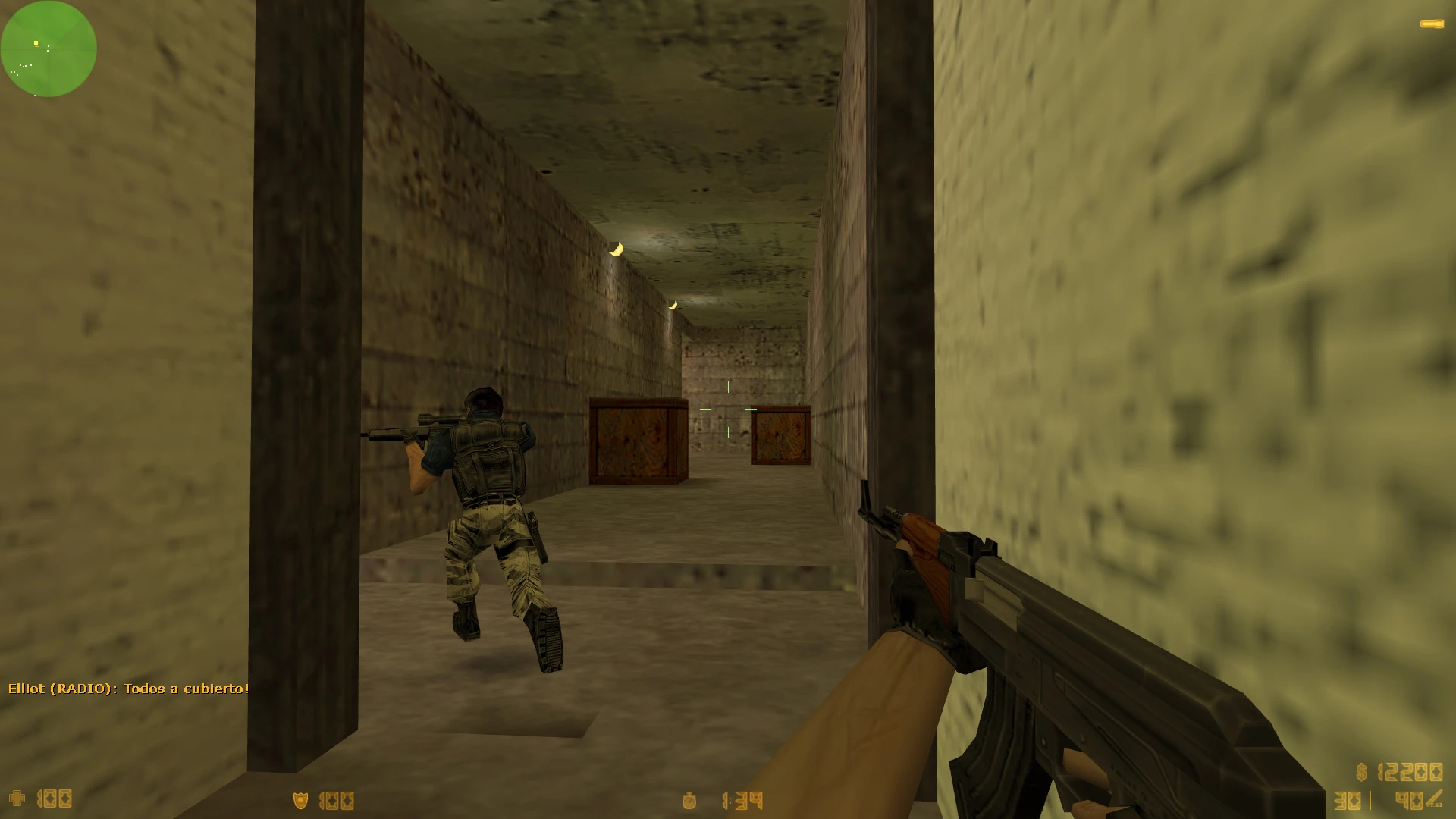
Here's an uncomfortable truth. Modern Steam no longer supports Windows 7, so the client can crash, refuse to update, or not launch at all. That's a big problem if your old rig runs the system you've loved for years.
The fix is simple: use a standalone build. A dedicated CS 1.6 version for Windows 7 doesn't depend on Steam, so it's stable and light, and it launches without constant login errors. Just install it, run it, and play.
A few tips for Windows 7:
- Install the latest available updates and the Visual C++ runtimes.
- Run the game as administrator if you see permission errors.
- Use compatibility mode only if the game refuses to start.
- Keep your GPUGPU-accelerated computing is the use of a graphics processing unit (GPU) together with a CPU to accelerate deep learning, analytics, and engineering applications. drivers as current as your hardware allows.
Old system, zero drama.
Best Mouse and Network Settings
Frames mean little if your aim and connection are off.
Mouse:
- m_rawinput 1 uses raw input for precise movement.
- m_filter 0 removes mouse smoothing.
- Disable Enhance pointer precision in Windows mouse settings.
- Use a polling rate of 500 or 1000 Hz if your mouse supports it.
- Keep sensitivity at a comfortable level, usually between 1.5 and 3 for 400 to 800 DPI.
- zoom_sensitivity_ratio 1.2 keeps scoped aim consistent.
Network:
- cl_cmdrate 101 and cl_updaterate 101 send and receive data at the maximum useful rate.
- rate 25000 allows plenty of bandwidth.
- ex_interp 0.01 reduces interpolation delay for smoother hit registration.
- Use a wired Ethernet connection whenever possible. Wi-FiWi-Fi is a type of wireless networking protocol that allows devices to communicate without cords or cables. Wi-Fi is technically an industry term that represents a type of wireless local area network (LAN) protocol based on the 802.11 IEEE network standard. It is the most popular means of communicating data wirelessly, within a fixed location, today. spikes are the silent killer of clutch rounds.
- Pause downloads and streaming on other devices while you play.
Best CS 1.6 Settings for Different PC Configurations
Not all potatoes are equal. Here's a quick guide:
Ultra low-end (single-core CPU, 1 GB RAMRandom Access Memory (RAM) is the place in a computer where the operating system, application programs, and data in current use are kept so that they can be quickly reached by the computers processor., old integrated graphics):
- Resolution 800x600, OpenGL or Direct3D
- Low textures, no high quality models
- Set max_shells 0, max_smokepuffs 0, cl_weather 0
- Close every background app
Mid low-end (dual-core CPU, 2 to 4 GB RAMRandom Access Memory (RAM) is the place in a computer where the operating system, application programs, and data in current use are kept so that they can be quickly reached by the computers processor., modern integrated graphics):
- Resolution 1024x768 or your preferred stretched setting
- Medium textures, V-Sync off
- Use the launch options listed above
- Cap FPS at 101
Budget gaming rig (any recent dedicated GPU):
- Native resolution or 1280x960 if you like
- Higher textures are fine
- Raise fps_max and test stability with fps_override 1
- Focus on mouse and network tuning
Common CS 1.6 FPS Problems and How to Fix Them
FPS drops randomly. Check background processes and your power plan. Overheating is another suspect, so clean the dust out of your fans.
Stuttering with high FPS. Your frame rate may be fluctuating wildly. Set a stable cap with fps_max instead of letting it float.
Game crashes on launch. Remove broken custom files, verify your install, and try a different renderer.
Black screen or flickering. Switch renderer between OpenGL and Direct3D, or update your graphics driver.
Input lag. Disable V-Sync, use a wired connection, and turn off mouse acceleration.
Low FPS only on certain maps. Heavy custom maps push old hardware. Stick to classic maps for competitive practice.
Frequently Asked Questions
What is the best FPS setting for the game?
Set fps_max 101 for a balanced and stable experience. Go higher only if your machine handles it without stuttering.
Does lower resolution really help?
Absolutely. It's one of the biggest gains on weak hardware, and many pros prefer it anyway.
Is OpenGL better than Direct3D?
For most modern setups, yes. Older GPUs sometimes run better with Direct3D, so test both.
Can I play on a laptop with no dedicated graphics card?
Yes. This engine is light, and with the settings above, integrated graphics handle it comfortably.
Will these console commands get me banned?
No. They're standard client settings, not cheats. Just stay away from third-party tools that modify the game.
How do I save my settings permanently?
Put your commands in your autoexec file so they run on every launch.
Your Final Round Starts Now
You don't need a monster rig to enjoy this timeless classic. A few smart tweaks to video options, launch parameters, Windows settings, and network rates can turn a stuttering mess into a buttery smooth experience. Remember the golden rule: change a little, test, and keep what works.
So grab a clean build, apply these settings, and jump back into those unforgettable dust-filled corridors. Download it, install it, tune it, and gather your old squad or join an active community server. That nostalgic buy-round-and-rush feeling is waiting, and this time your frames will keep up.
|